
PhotoRobot SmartCodes korisnički priručnik i list s kodovima spremnim za ispis
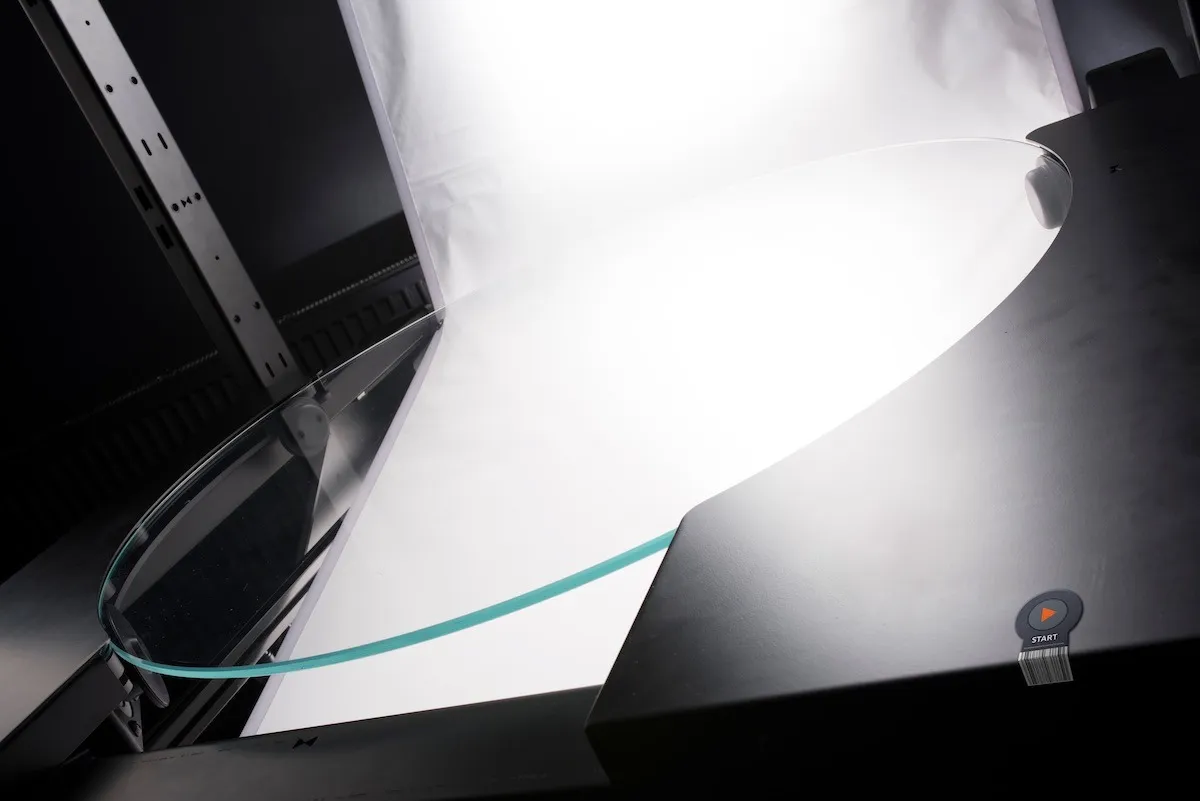
Sljedeći korisnički priručnik opisuje kako koristiti, preuzeti i ispisati PhotoRobot SmartCodes za integraciju unutar studijskih radnih procesa. U PhotoRobot kontrolama, SmartCodes su poput posebnih okidačkih kodova. Omogućuju izravnu kontrolu softvera skeniranjem koda. Ovisno o vrsti skenera koji se koristi, SmartCode može biti u formatu crtičnog koda ili QR koda. Kupci zatim ispisuju SmartCodes kao naljepnice, ili, alternativno, kao etikete za postavljanje blizu radnih stanica ili za nošenje po studiju.
Ovo eliminira nepotrebno kretanje naprijed-natrag s računalne radne stanice, značajno poboljšavajući produktivnost. Istovremeno, posebno je praktično kada su SmartCodes izuzetno blizu objekta za fotografiranje. U tim slučajevima, operater može postaviti proizvode na stroj i odmah signalizirati početak slijeda radnog procesa skeniranjem koda. Nema izgubljenog vremena između. Operater jednostavno skenira kod prilikom postavljanja objekta i skenira sljedeći kod kako bi automatski pokrenuo sljedeću fazu radnog procesa.
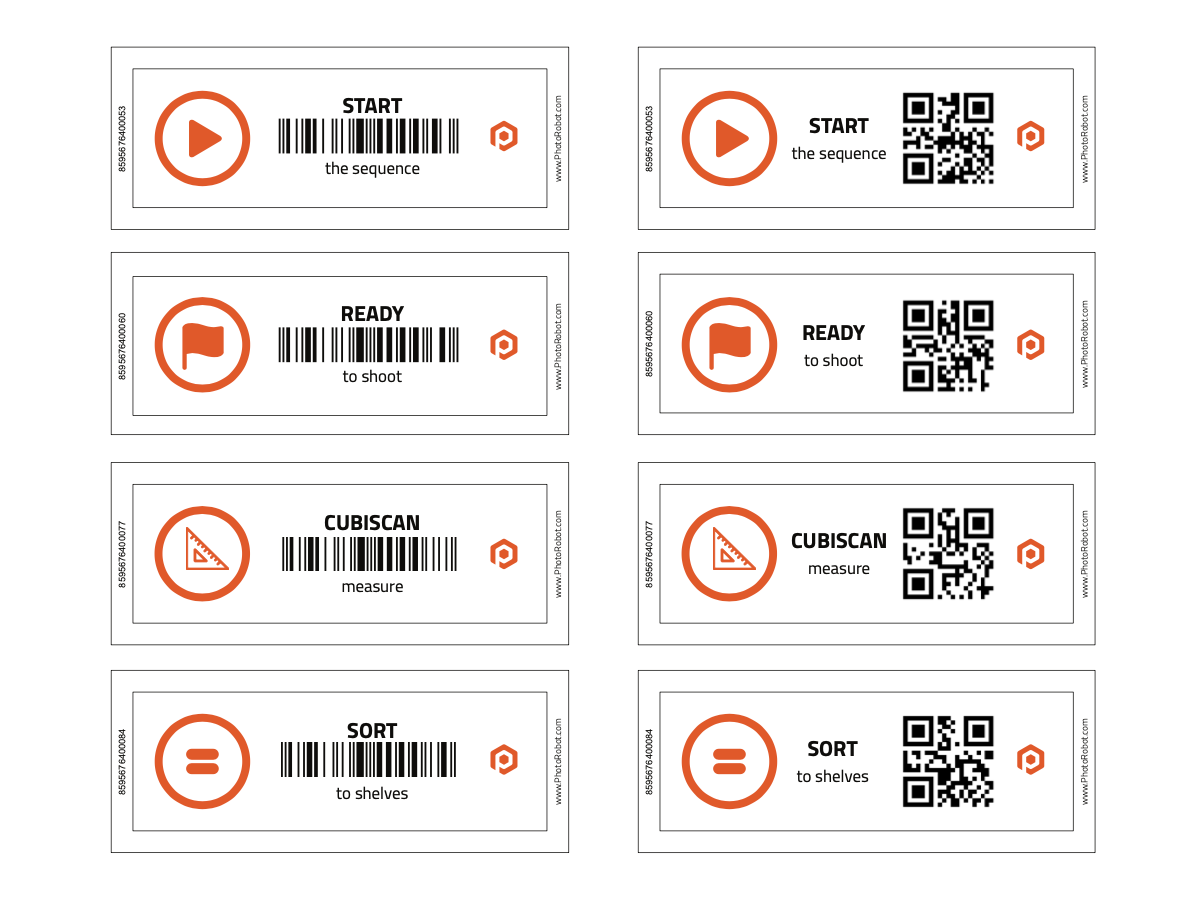
PhotoRobot SmartCodes dostupni za studijsku upotrebu
Trenutna ponuda PhotoRobot SmartCodesa za preuzimanje i ispis pokriva četiri ključne faze PhotoRobot-pokretanog radnog procesa. Ovi posebni SmartCodes uključuju:
- 8595676400053 – Pokreni sekvencu
- 8595676400060 – Spreman za snimanje
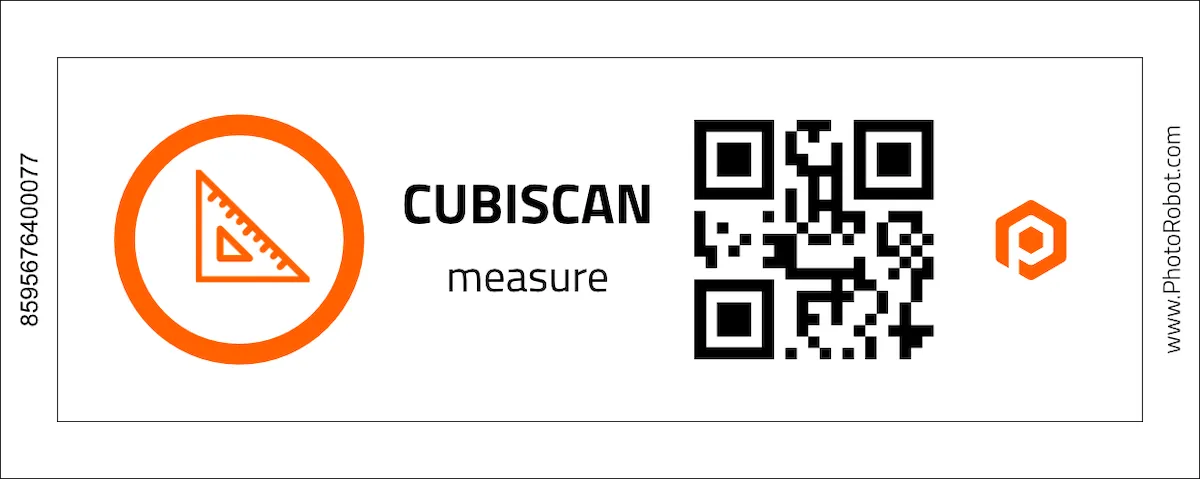
- 8595676400077 – Pokreni CubiScan mjerenje
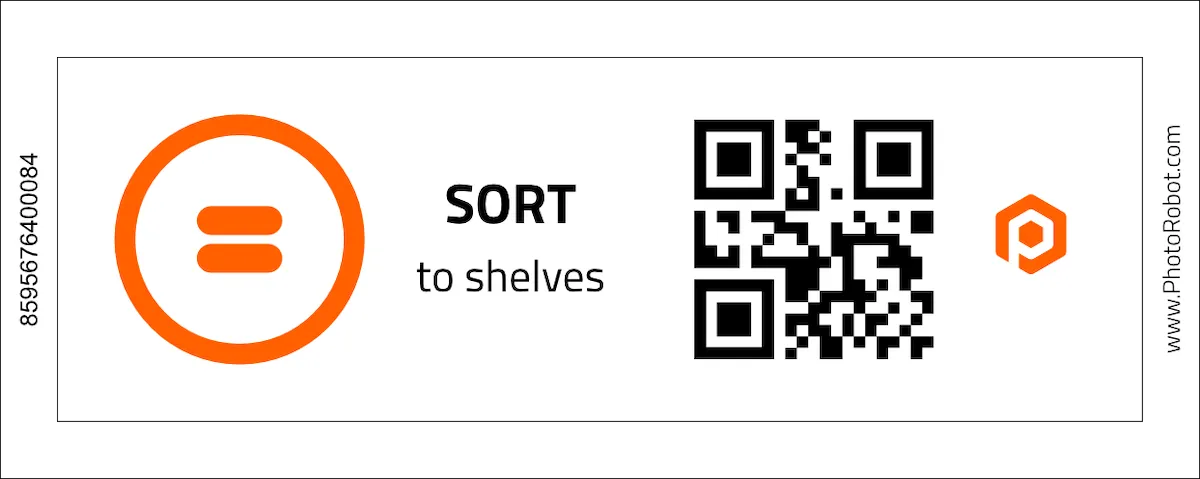
- 8595676400084 – Otvoreno sortiranje na police
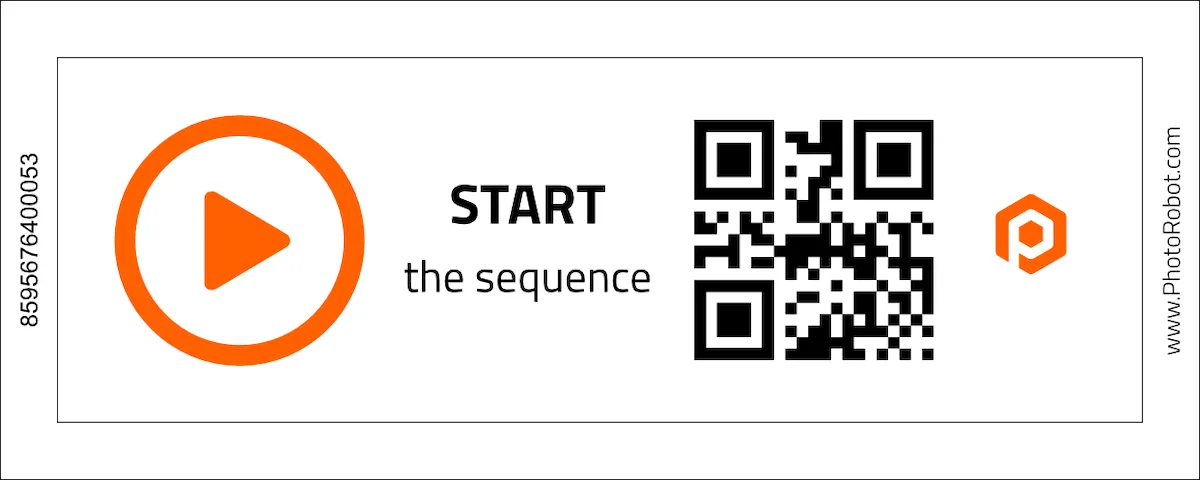
Pokreni sekvencu SmartCode
Skeniranje Startne sekvence SmartKoda će uputiti PhotoRobot Controls softver da započne robotizirani proces snimanja.
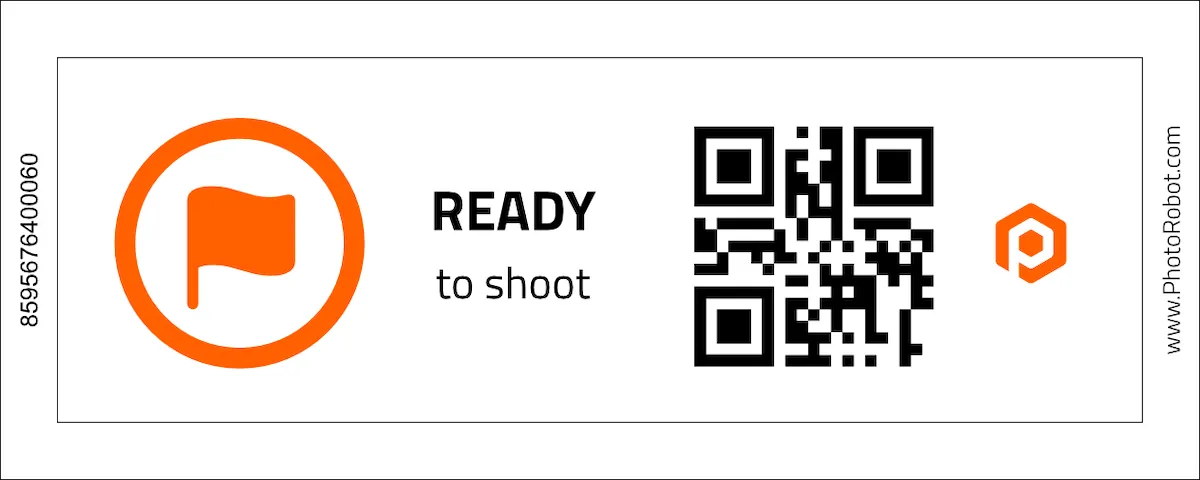
Spremni za snimanje SmartCode-a
SmartCode Ready to Shoot govori softveru da je proizvod postavljen za robota i da je sekvenca snimanja spremna za početak.
CubiScan SmartCode
SmartCode za CubiScan priprema CubiScan uređaj za mjerenje težine i dimenzija objekta. Skenirajte kod za pripremu CubiScan-a, a zatim jednostavno skenirajte objekt kako biste automatski zabilježili mjere predmeta u softveru.
Sortiranje na police SmartCode
Korištenje SmartCode-a Sort to Shelves nalaže PhotoRobot Controls softveru da započne sortiranje predmeta na police nakon skeniranja. Na taj način, operateri jednostavno skeniraju kod police, a zatim skeniraju predmet kako bi brzo dodijelili njegove postavke snimanja.
Napomena: Za više informacija o sortiranju predmeta na police, pogledajte PhotoRobot Korisnički priručnik za snimanje slika.
Spremni za ispis PhotoRobot SmartCodes podsjetnici
Koristite dva gumba u ovom odjeljku za pristup preuzimljivim, za ispis spremnim PhotoRobot SmartCodes varalicama. Pregled SmartCodesa sadrži sve kodove s pojedinačnim datotekama u QR kodu i formatima crtičnog koda. Zatim, kao bonus, tu je List Smartcodesa spreman za ispis za komercijalni ispis PhotoRobot SmartCodesa. Prva stranica je za ispis, dok druga stranica sadrži konture za rezanje.
Kako generirati jedinstvene QR kodove i crtične kodove
Moguće je generirati QR kodove ili barkodove koristeći razne online alate. Za višu kvalitetu preporučuju se vektorski formati (SVG). Iako su standardni bitmap formati poput PNG-a obično dovoljni.
- Generiranje QR koda dostupno je, na primjer, putem QRCode Monkey.
- Generiranje crtičnog koda dostupno je, na primjer, putem Barcode Generator.
Savjeti za studijsku integraciju PhotoRobot SmartCodes
U praksi, SmartKodovi se mogu koristiti kao naljepnice, ili ispisati na pisačima naljepnica (obično dostupnim na radnim stanicama), ili standardnim pisačima. SmartKodovi se zatim mogu postaviti bilo gdje u radnom prostoru kao oznake, ili na privjeske za ključeve za nošenje, na primjer. Korisnici imaju veliku fleksibilnost u načinu korištenja kodova.


Serija EOS Rebel


Serija EOS DSLR


Serija EOS M bez zrcala


Serija PowerShot


Krupni plan / Ručni

Serija EOS Rebel tvrtke Canon nudi DSLR fotoaparate prilagođene početnicima sa solidnom kvalitetom slike, intuitivnim kontrolama i svestranim značajkama. Idealne za ljubitelje fotografije, ove kamere pružaju pouzdano automatsko izoštravanje, zaslone osjetljive na dodir promjenjivog kuta i snimanje Full HD ili 4K videozapisa.
Veza
Razlučivost (MP)
Rezolucija
Serija EOS DSLR tvrtke Canon pruža slike visoke kvalitete, brzo automatsko izoštravanje i svestranost, što ga čini idealnim za fotografiju i videoprodukciju.
Veza
Razlučivost (MP)
Rezolucija
Serija EOS M bez zrcala tvrtke Canon kombinira kompaktan dizajn s performansama sličnim DSLR-u. S izmjenjivim objektivima, brzim autofokusom i visokokvalitetnim senzorima slike, ove su kamere izvrsne za putnike i kreatore sadržaja koji traže prenosivost bez žrtvovanja kvalitete slike.
Veza
Razlučivost (MP)
Rezolucija
Serija PowerShot tvrtke Canon nudi kompaktne fotoaparate prilagođene korisniku za povremene strijelce i entuzijaste. S modelima u rasponu od jednostavnih fotoaparata za usmjeravanje i snimanje do naprednih kamera za zumiranje, pružaju praktičnost, solidnu kvalitetu slike i značajke poput stabilizacije slike i 4K videozapisa.
Veza
Razlučivost (MP)
Rezolucija
Fotoaparati za krupni plan i ručni fotoaparati tvrtke Canon dizajnirani su za detaljno fotografiranje i videozapise izbliza. Kompaktni i jednostavni za korištenje, nude precizno izoštravanje, snimanje visoke razlučivosti i svestrane makro mogućnosti – savršeni za vlogiranje, fotografiranje proizvoda i kreativne krupne planove.


